MCP Integration
Connecting external MCP tool servers: installation, credentials, OAuth, per-agent attachment, and tool lifecycle
On this page
ADF supports the Model Context Protocol (MCP) for connecting external tool servers. This lets agents use tools provided by third-party services or local utilities without building them into the ADF runtime.
What is MCP?
MCP is a standard protocol for connecting AI models to external tools and data sources. An MCP server exposes a set of tools that the model can call, just like built-in tools.
Common examples:
- Filesystem access (read/write files on the host machine)
- Web browsing and search
- Database connections
- API integrations (Slack, GitHub, etc.)
MCP Server Manager
ADF Studio includes a built-in MCP Server Manager for installing, configuring, and monitoring MCP servers. Access it from Settings > MCP Servers.
Curated Server Registry
The Add MCP Server modal opens on a quick-add screen: a grid of cards for well-known MCP servers. Picking a card prefills the configuration form (package, environment variables, run location, auth flow, and any credential files the server needs) so you only fill in your own credentials before Connect.
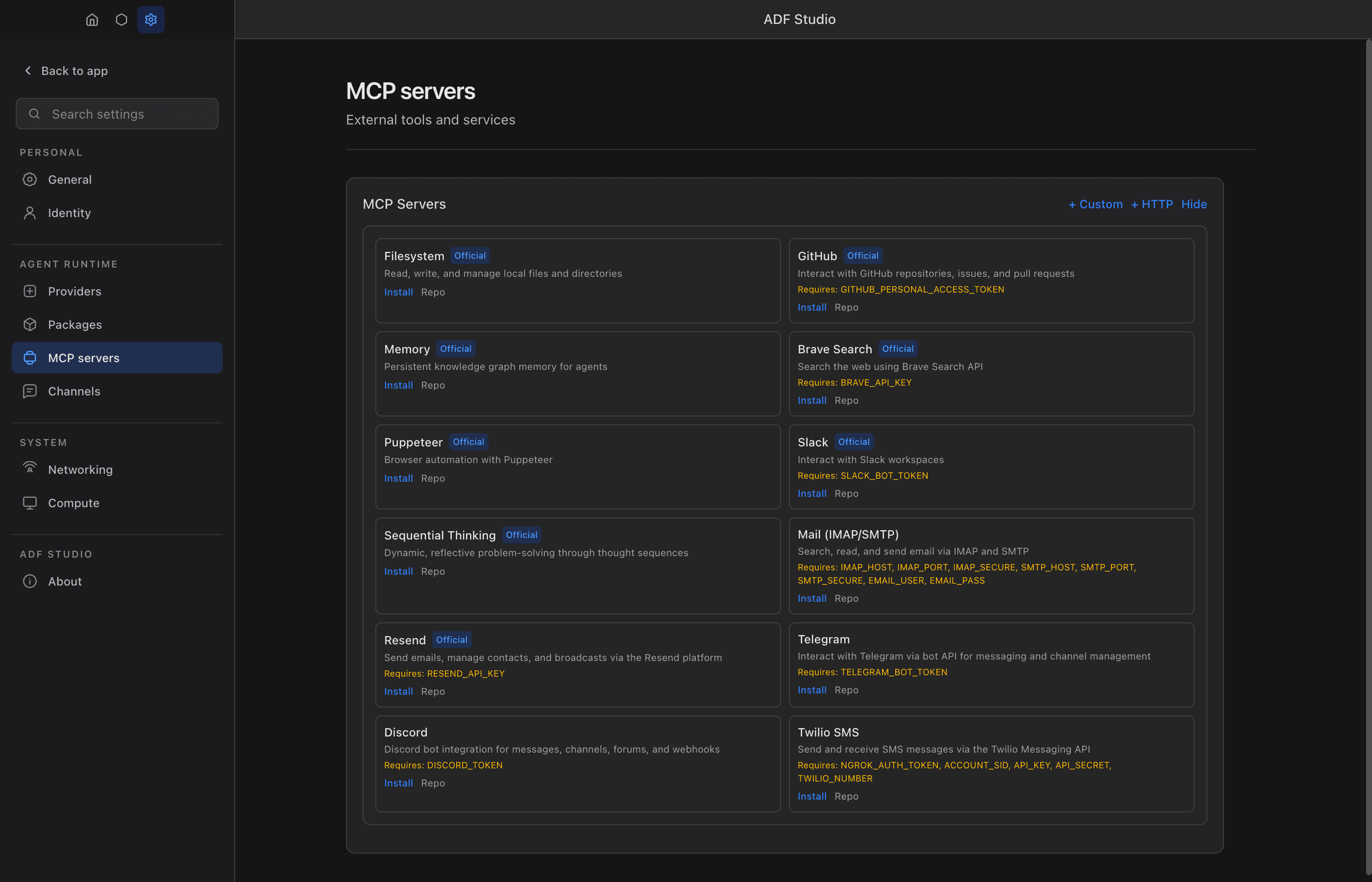
| Server | Category | Description |
|---|---|---|
| Google Drive | Data | Read and manage Google Drive, Docs, Sheets, and Slides (OAuth) |
| Gmail | Communication | Search, read, and send Gmail (OAuth) |
| Filesystem | Tools | Read, write, and manage local files and directories |
| GitHub | Dev | Interact with GitHub repositories, issues, and PRs |
| Memory | Data | Persistent knowledge graph memory for agents |
| Brave Search | Tools | Search the web using Brave Search API |
| Playwright | Tools | Browser automation attached to the agent’s ADF-managed visible Chromium session |
| Slack | Communication | Interact with Slack workspaces |
| Sequential Thinking | Tools | Dynamic, reflective problem-solving through thought sequences |
| Mail (IMAP/SMTP) | Communication | Search, read, and send email |
| Resend | Communication | Send emails via the Resend platform |
| Telegram | Communication | Interact with Telegram via bot API |
| Discord | Communication | Discord bot integration |
| Twilio SMS | Communication | Send and receive SMS via Twilio |
Fetching the Registry Yourself (Agents)
The full curated registry is a public JSON document:
https://raw.githubusercontent.com/christianbalevski/adf/main/mcp-registry.jsonFetch it directly (e.g. with sys_fetch) to see every known server — each entry carries its package (npmPackage / pypiPackage) or remote url, required and optional env keys, auth flow, credential files, and any prerequisite the owner must satisfy first. Use it to pick a server before calling mcp_install, or to tell your principal exactly which credentials a capability needs.
Three fields to respect when reading entries:
deprecated— the entry stays resolvable for existing installs, but do not install it fresh; the field’s text says why and what to use instead.advisory— a short security or operational warning to weigh (and relay to your principal) before installing.runLocation— absent on most entries, which means the server runs in a container (the default)."host"marks a server that cannot work containerized — it needs a host binary, a host daemon or loopback listener, host CLI login state, host filesystem paths, or the Settings-side auth flow. Installing one still needs a host grant you may not have; see run location below. (Studio also keeps a built-in floor for exactly those names, so they prefill Host even when read from an older registry document.)
The app bundles the same document as its offline fallback, so what you fetch is what the quick-add cards show — minus deprecated entries, which the UI hides.
Installing a Server
- Open Settings > MCP Servers and click Add MCP Server
- Pick a known server from the quick-add cards (OAuth servers are labeled, with their prerequisites called out — e.g. “needs a Google OAuth client JSON”), or choose Custom server / Remote HTTP server
- The configuration form pre-fills from your pick: package, environment variables, run location, auth flow, and any credential files the server needs (with a file picker per required file)
- Click Connect to verify: it runs the real pipeline — credential files land where the server runs, the OAuth browser flow runs when declared, and the result shows the discovered tool count (or the server’s own error output, verbatim). You can save without connecting; the row shows Not verified until a connect succeeds
- Save. Managed npm/pypi packages download in the background into
~/.adf-studio/mcp-servers/<package>/
Each server row afterwards has Configure (same form), Reconnect (or Re-authorize for OAuth servers), Logs, and Remove.
Run Location
Servers you install in Settings run in the shared compute container by default — the same default an agent’s own mcp_install gets, so a server does not become more privileged just because you were the one who added it. The container has no bind mount of your filesystem, so a containerized server sees its own files and nothing of yours. It requires Podman, which Studio sets up once.
Host is a deliberate choice. Switch a server’s Runs on control to Host and the form immediately shows the boundary statement — runs on the host with your user account’s access — your agents drive it — and the server row keeps a persistent location badge afterwards. A host choice still passes both host gates at run time: the app-wide Enable host access toggle in Settings → Compute (the configure panel offers a one-click enable when it is off), plus either the agent’s compute.host_access or the server’s presence in the approved-for-host list. Choosing Host in Settings adds the server’s name (with the package it resolved to) to that approved list, so your explicit choice is the trust decision for that package — a different package later squatting the same name stays containerized.
A minority of curated quick-add servers prefill Host because they cannot do their job containerized, and the form shows that choice before you save. They are the ones that need:
- a host binary or daemon —
pandoc,docker,kubernetes; - a listener on your machine’s loopback —
blender; - a locally installed Chrome —
chrome-devtools; - host CLI login state —
netlify; - an in-flow browser sign-in the auth preflight cannot drive yet —
workspace; - host filesystem paths —
filesystem,sqlite,duckdb,git,markitdown,excel,semgrep, andgoogle-sheets(its service-account key is referenced by path); - the Settings-side OAuth flow with a credential file you drop into the form —
gmail,google-drive,google-calendar,google-docs,teams. Connect stores those files and completes the sign-in only for a host-located server; a containerized server defers both to the moment an agent attaches it, so these stay on the host until Settings can store credential files for containers.
Everything else in the registry — the browser MCPs included, whose managed Chromium lives in the agent’s own container — installs containerized. In the registry document this is the entry’s runLocation field; absent means container.
A Custom server you configure yourself is containerized too, so its command has to exist inside the container — npx, uvx, node and python do; a program installed on your own machine does not. The form says so under the Runs on control. Point it at Host to run a command from your machine.
Because the run location also drives the suggested Available to agents default (below), a container-located server is suggested on while a host-located one is suggested off.
Servers you have already installed keep the run location they were saved with: nothing is migrated, and a server you previously added on the host stays on the host (with its host approval intact) until you change its Runs on control yourself. Only servers added from now on get the container default.
Making Settings Servers Available to Agents
Every registration has an Available to agents toggle. When it is on, agents can attach the server by calling mcp_install with its name or package — no fresh install, no separate copy: your configuration, credentials, run location, and (for host servers) completed authorization come along, and the attached tools arrive HIL-protected like any new capability. When it is off, mcp_install refuses with a plain error telling the agent to ask you to enable the toggle.
The suggested default follows the run location: on for container and remote servers, off for host servers — a host server usable by any autonomous agent is the bigger grant, so enabling it is a deliberate act. Your explicit choice always wins over the suggestion.
Attaching a server you already set up beats reinstalling it without your credentials: when mcp_install’s requested name or package matches one of these registrations, it attaches instead of installing fresh.
When an agent installs a server with mcp_install, ADF connects it immediately and synchronizes the discovered tools into the agent configuration. Newly discovered tools default to:
- Enabled — the runtime and authorized lambdas can use them immediately.
- Visible — the active model can discover them.
- HIL-gated — direct model calls require human approval until the owner removes the restriction.
This makes installation useful in the same turn without silently trusting a new capability. If discovery returns no tools, mcp_install reports the connection error and recent server stderr; use mcp_restart after correcting credentials, arguments, or runtime placement.
Transports and Install Types
MCP servers connect over one of two transports:
stdio— a local server process ADF spawns and speaks to over stdin/stdout (npm,pypi, orcustomcommand).http— a remote Streamable HTTP MCP endpoint ADF connects to by URL.
The mcp_install type selects the source: npm | pypi | custom | http. For http, pass url (plus optional headers, header_env, or bearer_token_env_var for auth) instead of a package.
The mcp_install, mcp_restart, and mcp_uninstall tools are disabled by default in the tool set; the owner must enable them before an agent can manage its own servers. Agents can request this via sys_update_config (tools.mcp_install.enabled, HIL-gated: your principal approves).
Adding or removing a server hot-applies; field changes don’t
Adding or removing a whole entry in mcp.servers — whether from the Agents screen or by the agent’s own sys_update_config — reconciles a running agent live. A newly-added server connects immediately through the same pipeline as mcp_install (its tools surface HIL-protected, no agent restart); a removed server is disconnected and its mcp_{name}_* tools are dropped from the live tool set. This extends to direct config edits the side effect mcp_install / mcp_uninstall already had. The reconcile is fire-and-forget, so saving config never blocks on a connect, and one server failing to connect just logs — it doesn’t fail the save or the others.
Changing a field on a server that is already connected is not hot-reloaded: the reconciler keys on server add/remove, not on field diffs. Editing run_location, tool_call_timeout_ms, args, credentials, etc. on an existing entry takes effect only after mcp_restart (disabled by default) or a stop-and-restart of the agent. Entries are name-addressable as mcp.servers.<name>.<field> — e.g. mcp.servers.github.tool_call_timeout_ms or mcp.servers.<name>.run_location.
Live add/remove reconcile currently applies to agents run in ADF Studio. A background/headless agent still picks up server add/remove on its next start (
mcp_install/mcp_uninstallconnect and disconnect there as normal).
Status Dashboard
The MCP Status Dashboard shows all registered servers with:
- Connection status — Connected, disconnected, or errored
- Tool count — Number of tools the server exposes
- Health checks — Periodic pings to verify the server is alive
- Logs — Expandable log viewer per server (including tool call logs)
- Actions — Test connection, restart, view logs, remove
Click any server to expand its configuration panel where you can edit args, environment variables, and timeout settings.
Per-Server Arguments
Each server supports a list of command-line arguments (one per row in the UI). Arguments support ~ expansion for home directory paths. Empty arguments are automatically filtered out.
Per-Server Timeout
Each server can have a custom tool call timeout (in seconds). This controls how long the runtime waits for a tool call response before timing out. The default is 60 seconds. Configure this in the server’s expanded settings panel.
Credential Management
Many MCP servers require API keys or other secrets. ADF Studio provides two levels of credential storage:
App-Wide Credentials
Credentials stored at the application level (in Settings) are available to any agent that uses the server. These are stored encrypted on disk.
Per-Agent (ADF) Credentials
Credentials can also be stored in an individual agent’s adf_identity table using the naming convention mcp:<server>:<key>. These are encrypted with the agent’s password (if set) and travel with the .adf file. Agents can store these themselves from code — await adf.set_identity({ purpose: 'mcp:<server>:<KEY>', value }) — mirroring the adapter credential pattern in Channels.
Credential Panel
The credential panel (accessible from the MCP Status Dashboard) lets you:
- Set app-wide credentials for each server’s required environment variables
- Set per-agent credentials for specific ADF files
- See which servers have stored credentials (key icon indicator)
- See which servers need credentials (“Needs keys” badge)
When credentials are saved for an agent, the MCP server configuration is automatically attached to that agent. When credentials are removed, the server is detached.
Credential Security
- Credentials are decrypted at runtime only when connecting the server process
- A defensive copy prevents decrypted values from being written back to persisted config
- Environment variables are passed to the server process, not to the agent
- Reading config back via
sys_get_configreturns MCPenvandheadersvalues as__redacted__— the keys stay visible so the agent can see which credentials exist, but never the material
Interactive Authentication (OAuth)
Some MCP servers require interactive authentication — typically an OAuth flow where the user authorizes access in a browser. ADF Studio handles this through an auth preflight step built into mcp_install.
How It Works
When an agent installs an MCP server with auth: true, the runtime:
- Spawns the server once in auth mode (not as an MCP transport) with any specified
auth_args— in the same place the server will actually run: inside its compute container for containerized servers (the default), or on the host for host-routed servers. That way the tokens the flow stores land where the server later reads them. - Forwards the OAuth callback (containerized servers only): the auth URL’s
redirect_urinames a loopback port likehttp://localhost:3000/callback; the runtime auto-detects it and tunnels that host port into the container so the browser’s redirect reaches the listener. Flows without a loopback callback (device-code) need no tunnel and get none. - Detects the auth URL in the server’s stdout/stderr and opens it in the default browser — but only after the auth process survives a short startup grace. An auth command that exits immediately (e.g. missing credentials) never gets a browser tab: the install fails with the command’s full error output, so the agent can relay the provider’s own setup instructions to the user
- Waits for authorization: Studio shows a “Complete authorization in your browser, then click Continue” dialog; headless runtimes wait for the auth command to exit on its own
- Kills the preflight process and connects via the normal MCP transport
The server’s OAuth flow saves credentials to disk (e.g., ~/.gmail-mcp/credentials.json) — in the container’s filesystem for containerized servers, which persists across restarts. Subsequent MCP connections use those saved credentials — no browser needed.
Agent-Side Usage
The agent calls mcp_install with the auth and auth_args parameters:
{
  "package": "@gongrzhe/server-gmail-autoauth-mcp",
  "type": "npm",
  "name": "gmail",
  "auth": true,
  "auth_args": ["auth"]
}| Parameter | Purpose |
|---|---|
auth | Enables the auth preflight — spawns the server once (in its run location) before connecting |
auth_args | Extra arguments passed to the server during preflight (e.g., ["auth"] for servers with a dedicated auth subcommand) |
auth_port | Host loopback port to forward into the container for the OAuth callback. Usually unnecessary — the port is auto-detected from the auth URL’s redirect_uri; set it only for servers whose redirect port never appears in the printed URL |
credential_files | File-shaped credentials (OAuth client keys, token stores): [{ path, required?, write_back?, content? }]. Content is sealed into the agent identity keystore, materialized into the server’s filesystem before every spawn, and token files are captured back after a successful auth — so grants survive container rebuilds and move with the .adf |
Gotcha —
envvalues are verbatim.~expands incredential_filespaths, butenvvalues reach the server process untouched. A server env var pointing at a credential file (e.g.GOOGLE_OAUTH_CREDENTIALS) must therefore use the same absolute runtime path as itscredential_filesdeclaration — a~/...env value ends up as a literal~directory under the server’s working directory.
Re-running mcp_install on an installed server
Calling mcp_install again for a server that is already installed applies whatever you pass with it — nothing is silently dropped:
env— stores/replaces credentials in the identity keystore (the recovery route after a locked envelope is unlocked)credential_files— merges declarations by path onto the server and seals any suppliedcontent. The declared path is part of the credential identity (mcp:<pkg>:file:<path>), so a renamed path needs its content re-supplied at the new path — the sealed copy under the old path is not movedauth: true— re-runs the auth preflight and reconnects: the way to re-authorize an existing server without uninstalling it
Only a bare re-install (none of the above) is an already_installed no-op. Credential-only updates land in config and keystore immediately but need mcp_restart to reach the running server.
A failed or timed-out install reports what survived in its persisted field: the server registration and any sealed credentials are kept — nothing is rolled back. Fix the reported error, then mcp_restart, or re-run mcp_install with auth: true to retry an interactive flow.
Prerequisites (Google OAuth Example)
Many MCP servers that use Google APIs (Gmail, Google Drive, Google Calendar) require a Google Cloud OAuth client credentials file. Here’s the one-time setup:
- Go to Google Cloud Console → APIs & Services → Credentials
- If prompted, configure the OAuth consent screen:
- User type: External
- App name: anything (e.g., “ADF Studio”)
- Support email and developer contact: your email
- Add your email as a test user under Audience → Test users (if app is in testing mode)
- Or click Publish App to skip the test user requirement
- Click + Create Credentials → OAuth client ID → Desktop app
- Download the JSON file
- Rename it to
gcp-oauth.keys.jsonand hand it to the agent — declared undercredential_filesonmcp_install(with thecontentfield, orfs_transferit into the server’s filesystem), it is sealed into the identity keystore and materialized at~/.gmail-mcp/gcp-oauth.keys.jsonin the server’s filesystem automatically on every spawn - Enable the Gmail API in APIs & Services → Library
After this setup, the agent’s mcp_install with auth: true will open a Google consent screen in the browser.
Example: Gmail MCP Server
Full install flow from the agent’s perspective:
mcp_install({
  package: "@gongrzhe/server-gmail-autoauth-mcp",
  type: "npm",
  name: "gmail",
  auth: true,
  auth_args: ["auth"],
  credential_files: [
    { path: "~/.gmail-mcp/gcp-oauth.keys.json", required: true, content: "<the OAuth client JSON from the user>" },
    { path: "~/.gmail-mcp/credentials.json" }
  ]
})
What happens:
- Runtime runs
npx -y @gongrzhe/server-gmail-autoauth-mcp authinside the agent’s compute container (the default routing) - Server prints the Google OAuth URL → runtime opens it in the host browser and tunnels the callback port (
localhost:3000from the URL’sredirect_uri) into the container - User authorizes Gmail access in the browser; the redirect lands on the in-container listener through the tunnel
- Server saves tokens to
~/.gmail-mcp/credentials.jsonin the container filesystem (an agent-scoped home — servers in the shared container no longer clobber each other’s credentials) - User clicks Continue in the ADF dialog
- Runtime captures
credentials.jsonback into the identity keystore (sealed in the credentials envelope), kills the preflight, closes the tunnel, connects via stdio, discovers ~19 Gmail tools - Every later spawn — new machine, rebuilt container — re-materializes both files from the keystore first. No re-consent
Add host: true only if you deliberately want the server on the host (requires host access); then the keys file, the auth flow, and the saved tokens all live in the host’s ~/.gmail-mcp/ instead. Host-side credential files must be declared with ~/-relative paths — they are confined to the home directory.
Migration note (agent-scoped home): containerized servers now get an agent-scoped $HOME instead of the container root’s /root. Two consequences for installs that predate this:
- One-time re-auth: tokens previously stored under
/root/...are no longer read, so each agent authorizes once more; from then on the keystore carries the grant across rebuilds and machines. - Servers that ignore
$HOME: a few servers resolve their config dir viagetpwuidor a hardcoded/rootpath rather than$HOME. For those, declare the absolute container path (e.g./root/.config/<server>/tokens.json) incredential_filesinstead of a~/path — materialization and write-back then target the path the server actually uses. - Podman unavailable now fails loudly: a container-routed server whose container cannot start no longer falls back to silently running on the host — the connect fails with a descriptive error and
mcp_restartrecovery guidance.
The agent can now use tools like mcp_gmail_send_email, mcp_gmail_search_emails, mcp_gmail_list_email_labels, etc.
Common Auth Patterns Across MCP Servers
| Pattern | How it works | auth_args example |
|---|---|---|
| Auth subcommand | Server has a dedicated auth mode that opens browser and saves tokens | ["auth"] |
| Device code flow | Server prints a code + URL; user enters code in browser | ["--auth=device-code"] or ["init"] |
| Env var / API key | No interactive auth — just pass the key via env parameter | Not needed (use env instead) |
| Remote HTTP (OAuth 2.1) | Auth handled by the MCP client/transport layer, not the server | Not needed |
Servers with an auth subcommand (Google Drive, Gmail, Spotify) are the most common case. Device code flows (Microsoft, Auth0) also work — the URL is detected and opened automatically.
Interactive vs Headless
| Scenario | Auth approach |
|---|---|
| Studio (foreground or background agent) | auth: true on mcp_install → preflight → user confirms in dialog |
| Headless (daemon/CLI) | auth: true still works: the auth URL is opened best-effort and logged, and the runtime waits for the auth command to exit on its own (5-minute timeout, then a plain error with the URL and mcp_restart guidance) |
| No human reachable at all | Owner pre-authorizes externally, stores the token in the identity keystore via env, server reads from env |
OAuth needs a human in a browser at some point, but not necessarily at the Studio dialog: headless runtimes surface the URL and wait, so anyone who can open the logged URL can complete the flow. When no browser interaction is possible at all, fall back to the env parameter with a pre-obtained token.
Per-Agent Server Attachment
After registering a server globally, you attach it to individual agents in their configuration panel:
- Registered servers show with their registry info (description, repo link, docs link)
- Attach/Detach buttons control whether the server is connected for the agent. On a running (Studio-run) agent, attaching connects it live and detaching disconnects it — no restart needed (see Adding or removing a server hot-applies)
- Remove button (for unregistered servers) includes a confirmation dialog warning about credential deletion
- Unregistered server blocks are collapsible (collapsed by default) with a count indicator
Only servers registered in Settings are connected during agent start. Servers referenced in an agent’s config but not installed globally have their tool declarations disabled to prevent sending unavailable tools to the LLM.
Using MCP Tools
MCP tools appear in the agent’s tool list with the naming convention:
mcp_<server_name>_<tool_name>For example, a filesystem server might expose:
mcp_filesystem_read_filemcp_filesystem_write_filemcp_filesystem_list_directory
When a server is (re)discovered, each mcp_<server>_<tool> declaration is reconciled against a stored hash of its schema:
- New tools are added enabled, visible, and restricted (HIL-gated) — usable immediately but never silently trusted. Set
mcp.new_tools_restricted: falseto have them start unrestricted instead (see Approval for new tools). - Changed tools (schema or description differs from the last reviewed hash) are set disabled and restricted until reviewed, so a server can’t silently alter a tool the agent already trusts.
- Removed tools are disabled, hidden, and marked accordingly.
Approval for new tools
mcp.new_tools_restricted (default true) decides whether tools discovered on a newly attached server start behind the HIL gate. With it false, an agent that can run mcp_install uses a new server’s tools as soon as it connects, without anyone approving each call. The Full access template ships with it off; Standard and Sandboxed leave the default.
{ "mcp": { "servers": [], "new_tools_restricted": false } }- Forward-only: flipping it never rewrites tools already declared. Use the shield on a server header to change those in bulk.
- A tool whose schema changed since it was last reviewed is still disabled and restricted, whatever this is set to.
- It is an ordinary config field. An agent with
sys_update_configchanges it under that tool’s own gate; lockmcp.new_tools_restricted(or the wholemcpsection) to keep it in the owner’s hands.
In Studio it is the New tools need approval checkbox at the top of the agent’s MCP Servers section.
Viewing MCP Tool Schemas
In the agent configuration panel, MCP tools are clickable — click any MCP tool name to open a modal showing its full JSON schema (parameters, types, descriptions). This helps you understand what each tool expects without needing to look up the server’s documentation.
Enabling/Disabling MCP Tools
Like built-in tools, each MCP tool can be individually enabled or disabled in the agent’s tool configuration:
{ "name": "mcp_filesystem_read_file", "enabled": true, "visible": true, "restricted": true }Each MCP server header also provides bulk controls for all of its discovered tools:
- Shield: add or remove the HIL gate.
- Eye: show or hide all enabled tools from the model.
- Checkbox: enable or disable all tools.
Bulk controls respect locked tool declarations. A mixed-state control indicates that only some eligible tools currently have that property.
Visible browser automation
Use the maintained @playwright/mcp server for an agent’s visible browser. ADF owns Chromium and its persistent profile; Playwright attaches to the existing loopback CDP endpoint instead of launching a separate browser. This keeps the Studio viewer, the user, and automation on the same tabs, cookies, and login state.
Installing @modelcontextprotocol/server-puppeteer is treated as a compatibility alias and routed to the Playwright integration. See Computer for lifecycle, authentication, and profile portability details.
Disabled Tool Guard
If an agent attempts to call a tool that is not in its enabled set (including disabled MCP tools), the runtime rejects the call and returns an error to the model. This prevents the agent from using tools it shouldn’t have access to.
Unavailable Servers
If an MCP server is unavailable (failed to start, crashed, not installed), its tools are silently disabled. The agent won’t see them in its available tools and won’t attempt to call them.
Media and Resource Content
MCP tools can return multiple content block types beyond plain text. The runtime handles all of them — nothing is silently dropped. All media (images, audio, resources) returned by MCP tools is automatically saved to adf_files at mcp/{server}/{tool}_{timestamp}_{index}.{ext} and referenced by durable VFS path in the tool result text. The agent can revisit saved media later via fs_read.
Multimodal Support (Image, Audio, Video)
Media from MCP tools and fs_read can be sent as native content blocks to the LLM when the corresponding modality is enabled in model.multimodal:
- Image (
multimodal.image):image_urlcontent blocks, same as the legacymodel.visiontoggle. Supports PNG, JPEG, GIF, WEBP. Size limit:limits.max_image_size_bytes(default 5 MB). - Audio (
multimodal.audio):input_audiocontent blocks. Supports WAV, MP3, OGG, FLAC, AAC, AIFF, M4A, WebM. Size limit:limits.max_audio_size_bytes(default 10 MB). Note: the AI SDK only natively supports WAV and MP3; other formats are coerced to WAV for the SDK’s validator but the actual codec negotiation happens provider-side. - Video (
multimodal.video):video_urlcontent blocks. Supports MP4, MPEG, QuickTime, WebM. Size limit:limits.max_video_size_bytes(default 20 MB). Note: the AI SDK doesn’t support video natively — the runtime bypasses the SDK’s message validation and injects raw OpenAI-formatvideo_urlparts directly into the HTTP request body. This works for providers that support the OpenAI chat completions format (OpenRouter, Gemini, etc.).
When a modality is disabled, media is still saved to adf_files and the tool result text includes a path reference (e.g., [image: mcp/puppeteer/screenshot_1710000000_1.png (image/png)]), but no content block is created for the LLM.
In code/shell execution: The full structured JSON response is always returned with raw base64 data regardless of multimodal settings (see below).
Resources and Resource Links
- Embedded resources with text content are inlined directly into the text response.
- Embedded resources with binary (blob) data are preserved in the structured JSON for code/shell access (see below). In the LLM loop, they appear as text summaries:
[resource 1: application/octet-stream, file:///path] — call this tool in code to access the raw data. - Resource links appear as:
[Resource link: <name> (<uri>)]
Unknown Content Types
Any content type not recognized by the runtime is included as [Unsupported content type: <type>] rather than being silently dropped.
Structured JSON Response (Code/Shell)
When an MCP tool returns media or binary content (images, audio, resource blobs), code/shell execution contexts receive the full structured JSON:
{
  "text": "Optional text content",
  "images": [
    { "data": "<base64>", "mimeType": "image/png" }
  ],
  "audio": [
    { "data": "<base64>", "mimeType": "audio/mpeg" }
  ],
  "resources": [
    { "data": "<base64>", "mimeType": "application/octet-stream", "uri": "file:///path/to/file" }
  ]
}
This allows agents to parse, modify, save (via fs_write), or forward data programmatically. Text-only MCP responses remain plain strings (no JSON wrapping).
File I/O Between Host OS and ADF
Agents can use MCP servers (e.g., @modelcontextprotocol/server-filesystem) to read and write files on the host OS. This works best from code execution contexts where the agent has access to the full structured response:
Reading a file from the host into ADF:
// Read binary file from host via MCP filesystem server
const result = await adf.mcp_filesystem_read_file({ path: '/home/user/photo.jpg' });
// Resource blob data is in result.resources[0].data (base64)
await adf.fs_write({ mode: 'write', path: 'photo.jpg', content: result.resources[0].data, encoding: 'base64' });
Writing a file from ADF to the host:
// Read file from ADF VFS
const file = await adf.fs_read({ path: 'photo.jpg' });
// Write to host via MCP filesystem server
await adf.mcp_filesystem_write_file({ path: '/home/user/output.jpg', content: file.content });
Text files work the same way but without the encoding: 'base64' parameter.
MCP Server Lifecycle
- Servers start when an agent that uses them becomes active
- Servers are stopped when no active agents need them
- The Emergency Stop button disconnects all MCP servers immediately
- Server processes are managed by the runtime, not the agent
- Auto-restart: if a server crashes, the supervisor attempts to reconnect with exponential backoff (2s, 4s, 8s, up to 3 retries). On successful reconnect, tools are automatically re-registered so the agent can use them again without a restart.
- Health checks use lightweight pings (not full tool listing) to minimize overhead
- If a tool is called while its server is disconnected, the agent receives an error with the server’s status and reason (e.g.,
"status: error: Connection lost") rather than a generic failure
Per-Agent Scratch Directory
Each agent with MCP servers gets an isolated temporary directory at {os-temp}/adf-scratch-{pid}/{agent-name}-{hash}/. This directory is set as the working directory (cwd) for all MCP server processes spawned by that agent.
Why this matters: MCP servers that write files as side effects (screenshots, downloads, generated assets) would otherwise write to the app root. The scratch directory isolates these writes per agent.
- Created on agent start (both foreground and background)
- Transfers with the MCP manager on foreground ↔ background transitions
- Deleted on agent stop, after MCP servers are disconnected
- Scoped per process to support multi-instance Studio (
ADF_INSTANCE) - Stale directories from unclean shutdowns are cleaned up on app launch
The scratch directory is purely internal — it is not exposed to the agent or configurable. The agent interacts with MCP tools normally; the isolation is transparent.
Background Agents
Background agents have full MCP support. When an agent with MCP servers configured is started from the sidebar, mesh, or directory start-all, its MCP servers are connected using the same logic as foreground agents. MCP managers and scratch directories move between foreground and background when switching files, and disconnect cleanly on agent stop or shutdown.
Security
Environment Variable Blocklist
MCP server configurations cannot override security-sensitive environment variables. The following are blocked:
ELECTRON_RUN_AS_NODENODE_OPTIONSLD_PRELOAD- Other security-sensitive process environment variables
If a server config includes blocked variables, a warning is logged identifying which variables were filtered. The server still starts with the remaining environment.
Input Validation
All MCP IPC handlers have Zod validation on their inputs, covering: probe, install, uninstall, restart, logs, credential set/get/list, attach, and detach operations.
Path Traversal Guards
- Entry point resolution validates that the resolved path stays within the server’s install directory
- Uninstall validates that the install path is within the managed base directory before deletion
Tool Call Timeout
All MCP tool calls have a default 60-second timeout to prevent the agent loop from hanging on unresponsive servers. This can be overridden per-server via the tool_call_timeout_ms config field (set in seconds through the Settings UI).
Portability Note
MCP server configurations travel with the .adf file. However, the servers themselves may not be available on other machines — the required npm packages need to be installed. Register the missing servers in Settings (or let the agent reinstall them via mcp_install) when opening a file on a new machine.