Documents and Files
The virtual filesystem: README.md, mind.md, soul.md, protection levels, templating, meta keys, local tables, adf-file:// links
On this page
Every ADF agent has a virtual filesystem stored inside its .adf database. This guide covers the primary document, the mind file, and how to work with the filesystem.
The Primary Document (README.md)
README.md is the agent’s primary document, a markdown file that states what the agent does and how to interact with it. Its place among the file’s other contents is defined in spec §1.3.
The document is the human-agent interface — a shared surface where the agent presents its work and the human provides input. What it contains depends on the agent’s purpose: notes, a dashboard, an essay draft, a report, or anything else that benefits from a persistent, editable artifact.
Protection
The primary document has no_delete protection by default. This means agents cannot delete it but can always write to it — no_delete files stay agent-writable; only read_only blocks writes. See File Protection Levels below for the full three-level system.
Reaching the Document
README.md content is not auto-injected into the system prompt. The agent reads it on demand with fs_read("README.md") — token-efficient for large documents. If you want the document in the prompt, place a {{README.md}} placeholder in the agent’s instructions (see Instruction templating below).
The Mind File (mind.md)
mind.md is the agent’s working memory. It’s always markdown, always protected, and always at the path mind.md — seeded at creation with the structured index skeleton (## Always / ## Pages / ## Rules).
Purpose
The mind file is where agents store evolving knowledge — learnings, observations, summaries, and notes. While the instructions (system prompt) are immutable, the mind file can be freely updated by the agent.
Think of it this way:
- Instructions = who the agent is (identity, rules, constraints)
- Mind = what the agent knows (knowledge, context, memory)
Injection Behavior
mind.md is injected into the system prompt via a {{mind.md}} placeholder in the base prompt (see Instruction templating below) as a session-start snapshot. Injection is conditional: it happens only when include_base_prompt is enabled (or the {{mind.md}} token appears in the agent’s instructions). Mid-session writes via fs_write update the file on disk but do not refresh the injected version — the prompt prefix stays stable, so the agent must fs_read("mind.md") to see its own mid-session writes. After compaction or loop clear, the runtime re-reads the latest mind.md and injects the fresh version.
Instruction templating
Your instructions (and the base system prompt) can pull any workspace file into the system prompt with a {{<path>}} placeholder — {{mind.md}}, {{README.md}}, {{policy/tone.md}}, etc. The runtime replaces each with that file’s contents at session start.
- Files only — placeholders resolve against the virtual filesystem (
adf_files), never identity keys or config. For dynamic or queried values, use a lambda withloop_inject. - Snapshot — files are read once per session and refreshed on compaction / loop clear, never mid-session (keeps the prompt cache warm).
- Single pass — content pulled in by a placeholder is not itself scanned for more placeholders (no recursion).
- Provenance tags — resolved content is wrapped in
<injected_file path="...">…</injected_file>tags so the agent can tell injected file data from surrounding harness instructions (any literal</injected_file>inside the content is escaped). This tagging applies only to system-prompt{{}}placeholders — not to inbox messages, tool results, orfs_readoutput. - Missing files render a self-closing
<injected_file path="..." missing="true"/>marker instead of vanishing, so typos stay auditable. - Templating is independent of the
fs_readtool — it works even if the agent can’t read files itself.
This is how mind.md and soul.md are injected; it’s an ordinary use of the same mechanism, not a special case.
Compaction
When the agent’s conversation history (loop) gets too long, it can summarize important information and write it to mind.md via the loop_compact tool. This preserves knowledge across conversation resets. See Memory Management for details.
The Soul File (soul.md)
soul.md is the agent’s voice and identity file — how it speaks and the worldview behind it. Like mind.md, it is a core file created with no_delete protection and owned by the agent to rewrite over time.
It is injected into the system prompt via a {{soul.md}} placeholder in the base prompt, under the same rules as mind.md: a session-start snapshot, conditional on include_base_prompt (or the token appearing in instructions), refreshed on compaction / loop clear.
Unlike README.md and mind.md, soul.md is not exempt from the limits.max_file_write_bytes write cap — see File Write Size Limits.
Virtual Filesystem (adf_files)
All files are stored in the adf_files table inside the SQLite database. The filesystem is flat but supports path-like names for organization.
File Protection Levels
Every file in the virtual filesystem has a protection level that controls what operations agents can perform on it:
| Level | Read | Write | Delete | Description |
|---|---|---|---|---|
read_only | Yes | No | No | Agents can read it but cannot write or delete it |
no_delete | Yes | Yes | No | Can be read and written, but not deleted |
none | Yes | Yes | Yes | No restrictions (default) |
Core files (README.md, mind.md, and soul.md) are locked to no_delete protection and cannot be changed to a different level. All other files default to none.
In the UI, you can cycle a file’s protection level by clicking the protection badge: none → no_delete → read_only → none. The badge is color-coded: red for read_only, amber for no_delete, and gray for none.
Tool enforcement:
fs_read— blocked if protection isread_onlyfs_write— blocked if protection isread_onlyfs_delete— blocked if protection isread_onlyorno_delete
Reserved Paths
| Path | Protection | Description |
|---|---|---|
README.md | no_delete | The primary document |
mind.md | no_delete | Working memory |
soul.md | no_delete | Voice and identity |
public/* | none | Files readable by other agents without waking the owner |
lib/* | none | Support scripts and utilities |
Recommended Conventions
These paths aren’t enforced but are strongly recommended:
| Path | Purpose |
|---|---|
data/ | Agent-managed data files |
imports/ | Received attachments (namespaced by sender ID) |
lib/ | Support scripts and utilities |
public/ | Files visible to other agents |
Working with Files in the UI
The Files tab shows all files in the agent’s virtual filesystem, organized in a collapsible folder tree. Files are grouped by directory with expand/collapse toggles, folder icons, and file count badges. Each file row shows the filename, size, and protection badge.
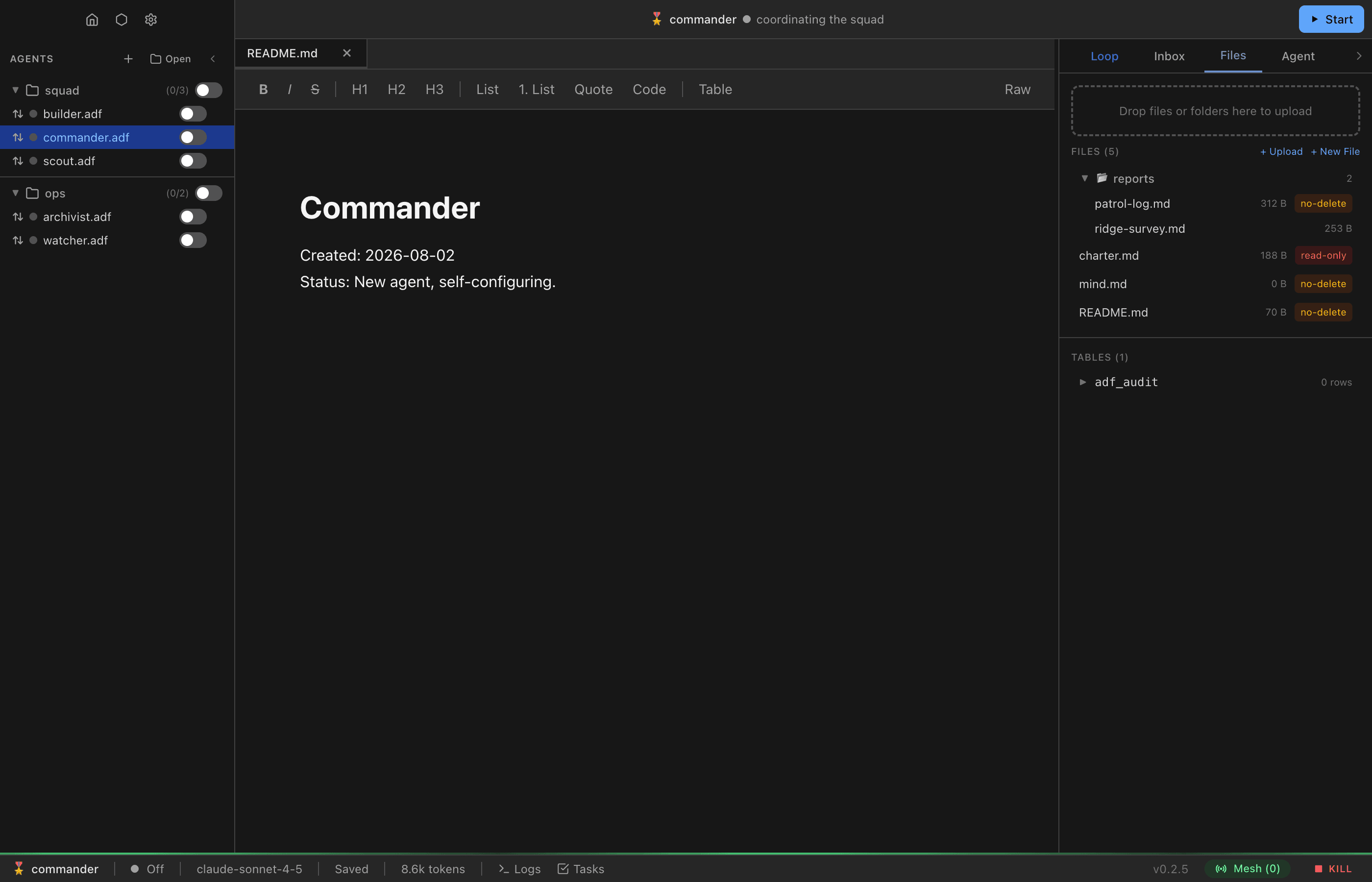
From here you can:
- Browse the folder tree — Expand and collapse directories to navigate the file structure
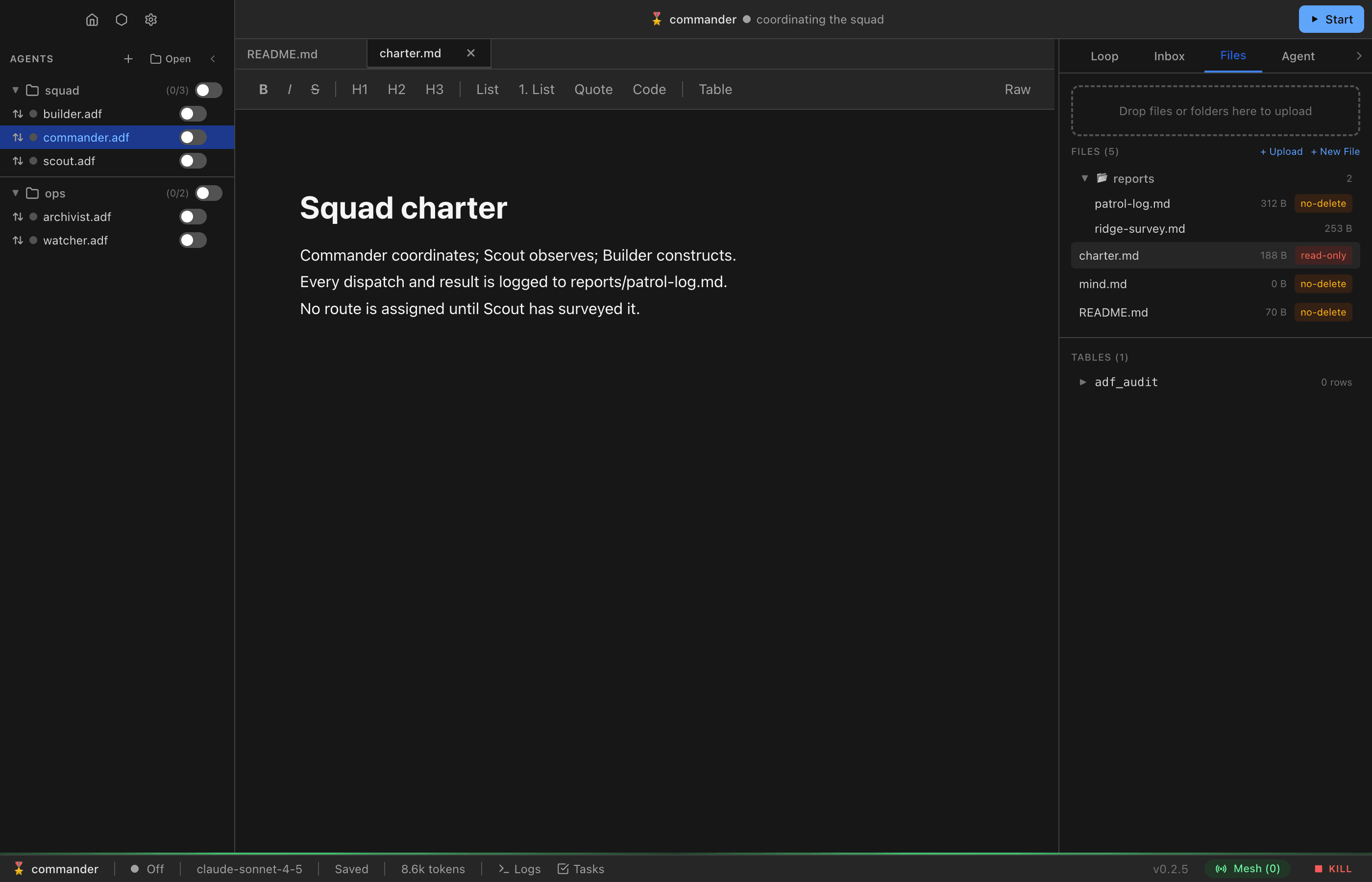
- Open files in the editor — Click a file to open it in the tabbed code editor (see below)
- Upload files — Drag and drop files into the panel. Files with unrecognized extensions (e.g.,
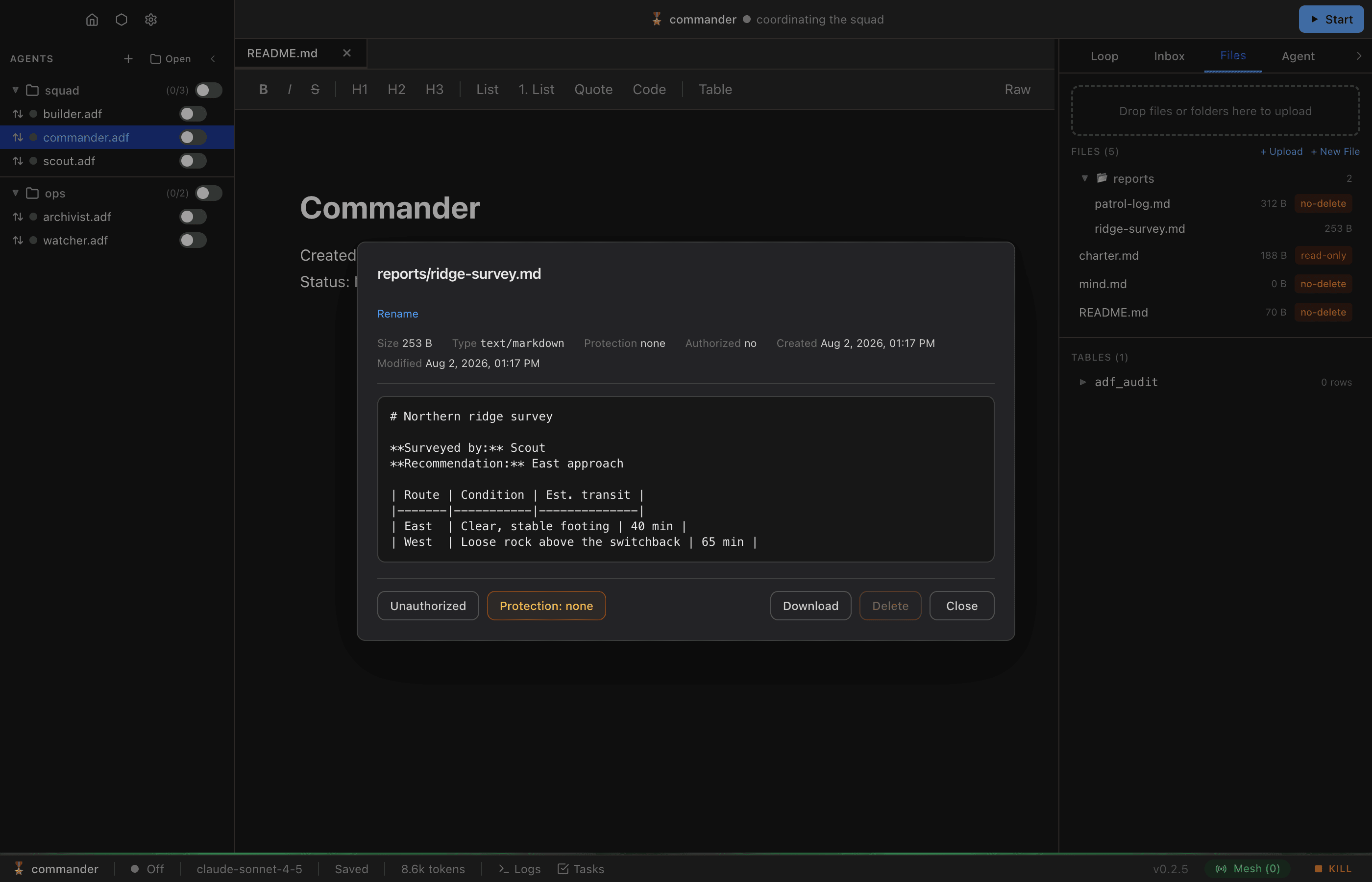
.adf,.db,.dat) are stored as binary withapplication/octet-streamMIME type - Rename/delete/protect — Use the file preview modal (click a file) to rename, delete, or cycle protection levels
- View metadata — The file preview modal shows size, MIME type, protection level, and created/modified timestamps
Tabbed Code Editor
ADF Studio includes a multi-tab code editor powered by CodeMirror for viewing and editing internal ADF files with syntax highlighting. The editor sits alongside the markdown document editor in the main panel.
Key features:
- Multiple tabs — Open several files at once; tabs show the filename and a dirty indicator
- Syntax highlighting — Automatic language detection based on file extension (TypeScript, JavaScript, Python, JSON, Markdown, etc.)
- Dirty-state tracking — Unsaved changes are indicated with a dot on the tab; save with
Cmd/Ctrl + S - Live updates — When an agent modifies a file (e.g., via
fs_write), the editor tab updates automatically - Image viewing — PNG, JPEG, GIF, WebP, SVG, BMP, ICO, and AVIF files open in a read-only image tab, fitted to the view; click the image or use Actual size to see it at 100%. The footer shows dimensions, file size, and type. Images over 25 MB are not displayed. An image tab does not update while it is showing — use Reload after the agent rewrites the file
- Binary file handling — Other binary files show a placeholder instead of attempting to render content
When you open an ADF file, README.md is automatically opened in the first editor tab. Clicking files in the Files panel opens them in new tabs.
Working with Files via Tools
Agents interact with the filesystem through the fs_* tools:
| Tool | Description |
|---|---|
fs_read | Read file content (text files return UTF-8, binary files return base64; supports line ranges) |
fs_write | Write, edit, or append files. mode is required (write | edit | append); edit does single find-and-replace or an atomic edits[] batch, plus replace_all. Binary supported. |
fs_list | List files, optionally filtered by path prefix |
fs_delete | Delete a file (respects protection) |
Large Files
The executor applies two output guards to fs_read results when they go to the LLM context:
- Token limit — Files exceeding
limits.max_file_read_tokens(~30k tokens) are truncated with a footer showing the full size - Large file preview — Files over 300 lines (but within the token limit) show only the first 50 lines with a size summary
The agent can use start_line/end_line to paginate past either guard. From code execution (sys_code/sys_lambda), fs_read always returns full content with no truncation:
// In sys_code — always gets the full file
const result = await adf.fs_read({ path: 'data/large_dataset.csv' })
const lines = result.content.split('\n')
// process lines...
File Chunks
Very large files are stored across the adf_file_chunks table, split into chunks. This is handled transparently by the runtime — agents and users interact with files through the same API regardless of whether they’re chunked.
Meta Keys (adf_meta)
The adf_meta table stores key-value pairs with protection levels. Agents use this for operational state (status, counters, notes) and the runtime uses it for system identity (DIDs, version, timestamps).
Meta Protection Levels
Every key has a protection level that controls what the agent can do:
| Level | Read | Write | Delete | Use Case |
|---|---|---|---|---|
none | Yes | Yes | Yes | Agent-managed operational state (default) |
readonly | Yes | No | No | System identity and config (DIDs, version) |
increment | Yes | Increment only | No | Monotonic counters (offspring count, spend tracking) |
Protection is set at creation time and cannot be changed by the agent. The human owner can change any protection level through the UI.
Increment validation: both the stored value and the new value must be valid numbers, and the new value must be strictly greater than the current value.
Working with Meta Keys via Tools
| Tool | Description |
|---|---|
sys_get_meta | Read one key’s value, or list all entries as key\tvalue lines. Query adf_meta directly for protection levels |
sys_set_meta | Create or update a key. Optional protection parameter on creation |
sys_delete_meta | Delete a key (blocked if readonly or increment) |
Working with Meta Keys in the UI
The Config tab includes a Meta Keys section at the bottom showing all key-value pairs with color-coded protection badges: red for readonly, blue for increment, gray for none.
From here you can:
- View/edit a key — Click a row to open the meta key modal
- Change the value — Edit the value in the modal textarea and save
- Cycle protection — Click the protection button to cycle:
none→readonly→increment→none - Delete a key — Click Delete in the modal (the owner can delete any key regardless of protection)
- Add a new key — Click ”+ Add key” to create a new key with a chosen protection level
System Keys
Keys prefixed with adf_ are system-managed and set to readonly protection. These include adf_did, adf_name, adf_handle, adf_schema_version, adf_created_at, adf_updated_at, and adf_parent_did.
The status key is created by default with none protection for agents to track their current state.
Local Database Tables
Beyond the filesystem, agents can create custom SQLite tables for structured data. Tables must not use the adf_ prefix (which is reserved for system tables).
Convention
The recommended prefix is local_ (e.g., local_chat_history, local_embeddings), but any non-adf_ name works.
Creating Tables
Agents create tables via the db_execute tool:
CREATE TABLE local_subscribers (agent_id TEXT, topic TEXT, subscribed_at INTEGER);Querying Tables
Use db_query for SELECT statements and db_execute for INSERT/UPDATE/DELETE. The runtime guarantees persistence of these tables.
Vector Search
The sqlite-vec extension is loaded on every ADF database, enabling vector similarity search via vec0 virtual tables. Use the local_ prefix as with any agent-created table.
Creating a vector table:
CREATE VIRTUAL TABLE local_embeddings USING vec0(
  document_id TEXT,
  embedding float[384]
);
The dimension (e.g. 384) must match the embedding model you use. Common sizes: 384 (MiniLM), 768 (BERT), 1536 (OpenAI ada-002).
Inserting vectors:
INSERT INTO local_embeddings(document_id, embedding) VALUES (?, ?);Pass the vector as a JSON array (e.g. [0.1, 0.2, ...]) via bind parameters.
Querying nearest neighbors:
SELECT document_id, distance FROM local_embeddings
WHERE embedding MATCH ? AND k = 10;
The MATCH clause performs brute-force nearest-neighbor search using Euclidean (L2) distance. The k parameter controls how many results to return. This scales well for up to tens of thousands of vectors per table.
Important notes:
- Vectors are stored in binary format internally. Reading the raw
embeddingcolumn returns binary data, not a JSON array — useMATCHqueries for search, not raw column reads. - Dimension mismatches on insert produce a clear error (e.g. inserting a 3D vector into a
float[4]column). - Updates to both metadata fields and embeddings are supported. Updated vectors participate in search immediately.
- To generate embeddings, use your existing tools — call an embedding API from
sys_codeor a lambda, then insert the resulting vectors viadb_execute.
Viewing Tables in the UI
The Files tab includes a section for database tables where you can:
- See all custom tables and their row counts
- Query table data with pagination
- Drop tables (custom tables only)
- View the
adf_archivetable (read-only) to see archived data snapshots
File Write Size Limits
The limits.max_file_write_bytes setting (default: 5 MB) controls the maximum size of files an agent can write via fs_write. If the content exceeds this limit, the write is rejected with a human-readable error message. An agent hitting the cap can request a raise of limits.max_file_write_bytes via sys_update_config — HIL-gated (your principal approves) — rather than shrinking the work.
This limit does not apply to README.md or mind.md, which have no write size cap. It does apply to soul.md: despite being a core file, soul.md is subject to the cap like any ordinary file.
The adf-file:// Protocol
ADF Studio registers a custom adf-file:// protocol for referencing files stored inside the ADF database. It supports both inline images and clickable links to other workspace files.
Usage
Reference ADF files in markdown using the adf-file:// scheme:
[see notes](adf-file://notes/research.md)
- Links — Clicking an
adf-file://link opens the target file in a new editor tab (or activates it if already open). Works in both the markdown editor and the agent loop. - Images — The protocol serves file content directly from the
adf_filestable, so images render inline without extracting to disk.
Image Support in the Editor
The markdown editor supports:
- Inline images — Standard markdown image syntax with
adf-file://URLs - Resizable images — Drag handles to resize; dimensions are preserved through markdown round-trips as HTML
<img>tags - Spaces in file paths are automatically percent-encoded (
%20)